The Dashboard
The dashboard is the default page users see upon entering MAXRES Construct. It serves as the central hub for accessing all platform areas and managing courses.
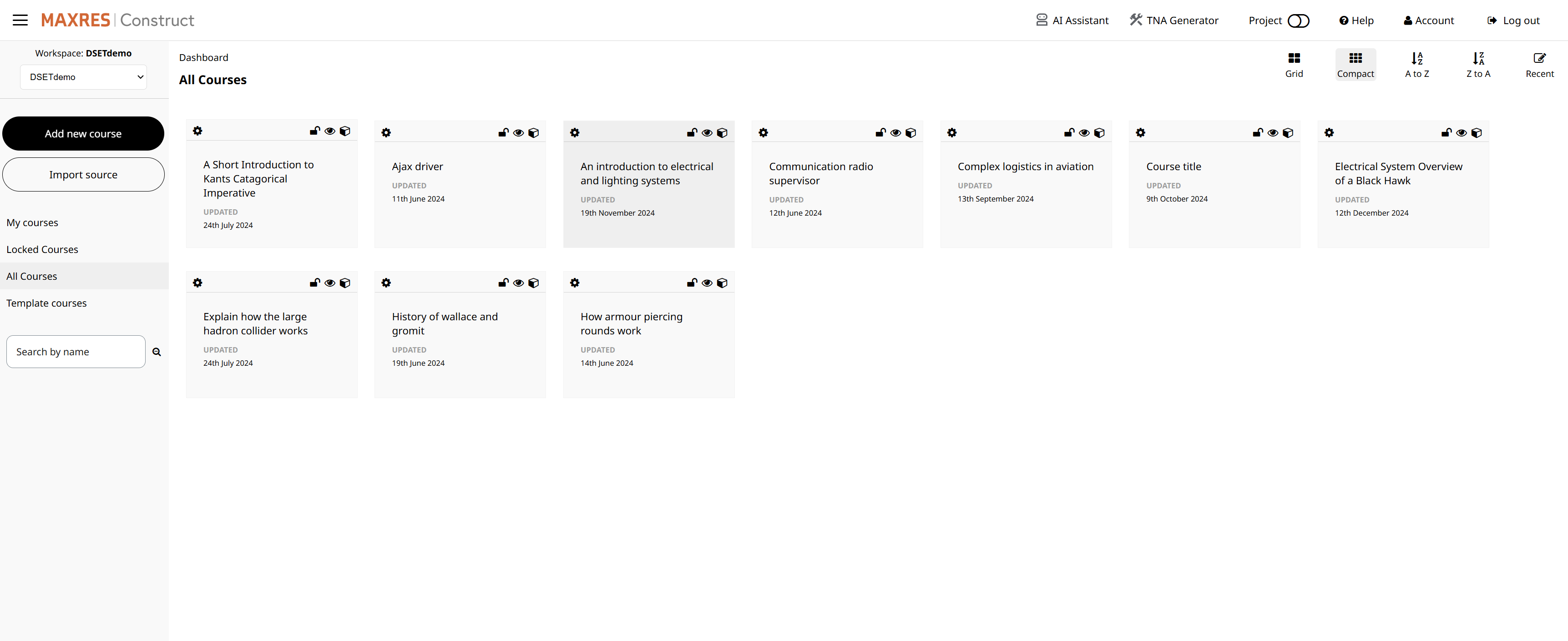 Figure 1: The MAXRES Construct Dashboard
Features of the Dashboard
Navigation Options
-
Hamburger Menu
- Dashboard: Returns to the main dashboard page.
- Asset Management: Manage assets uploaded to the platform.
- Plugin Management: Access and manage platform plugins.
- User Management: Administer user accounts and permissions.
-
Account Options
- Change email address: Update your email address.
- Change first name: Update your first name.
- Change last name: Update your last name.
- Change password: Update your account password.
-
Log Out
- Log out of MAXRES Construct.
-
Workspace
- Switch between Workspaces that your account has permission to access.
Course Management
-
Add New Course
- Create a new course from scratch in My Courses.
-
Import Source
- Import an Adapt Framework course as source code into MAXRES Construct.
-
My Courses (Default)
- View courses that you have created or own.
-
Locked Courses
- View courses that have been locked to prevent further editing.
-
All Courses
- View all courses currently residing in the Workspace you are in.
Search and Filtering
-
Search by Name
- Filter courses visible on the dashboard by their name.
-
Search by Tag
- Filter courses by the tags associated with them.
Layout and Sorting
-
Grid (Default)
- Change the dashboard course layout to a grid view.
-
A to Z (Default)
- Order courses in descending alphabetical order.
-
Z to A
- Order courses in ascending alphabetical order.
-
Recent
- Order courses chronologically, with the most recently modified appearing first.
The dashboard’s intuitive layout ensures that all features and functions are easily accessible, streamlining course creation and management.